
Quick answer
Export from Crouton, then use CookClip’s dedicated migration flow
Export your recipes from Crouton as a ZIP archive, or choose one .crumb recipe when you only need a single transfer. In CookClip, open Settings → Import Recipes → Import from Crouton, choose the file, and keep the app open while it imports. CookClip preserves available recipe details, skips matching recipes, and reports imported, duplicate, and failed entries when the migration finishes.
What this migration supports
CookClip’s Crouton migration is designed for an exported recipe library, not a screenshot or a PDF printout. Use Crouton’s recipe export so CookClip can read structured data instead of asking you to rebuild every ingredient and step by hand. For a full library, choose the ZIP export. For a one-off recipe, a single .crumb file is enough.
The importer can preserve recipe titles, ingredient and step sections, servings, cooking times, source links, nutrition, tags, and embedded photos when those fields are present in the Crouton file. The result is still worth checking: exports can contain incomplete or unusual entries, and your source app may have details that need a small cleanup after migration.
Step 1: Export the recipes from Crouton
In Crouton, use its recipe export or backup option and save the export somewhere the iPhone or iPad can access through the Files picker. A ZIP export is the right choice when you want to move several recipes. If you are testing the workflow or moving one favorite, save that recipe as a .crumb file instead.
Keep the original Crouton library until you have checked the CookClip result. Do not use a PDF export when your goal is a structured migration; PDFs are useful for reading, but they do not carry the same recipe fields as Crouton’s .crumb data.
- Use a ZIP for a batch migration.
- Use a .crumb file for one recipe.
- Save the export in Files and keep the original library as a backup.
Inside the app
See the workflow in CookClip
These are real CookClip screens. Swipe across on mobile, or compare all three on a larger screen.
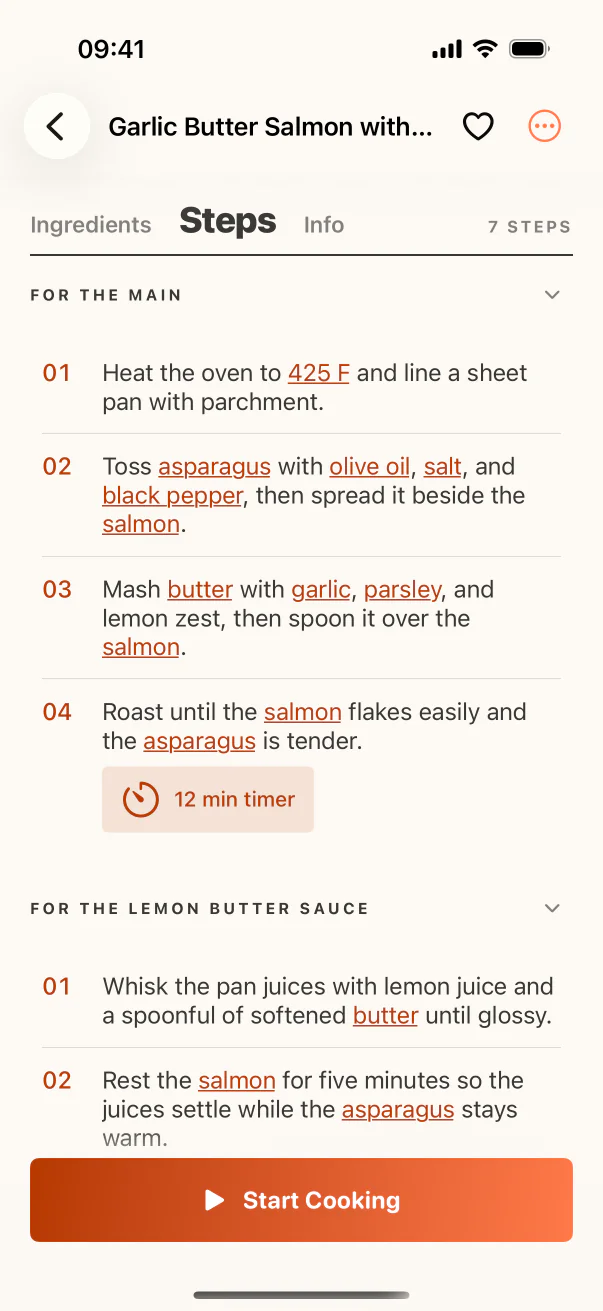
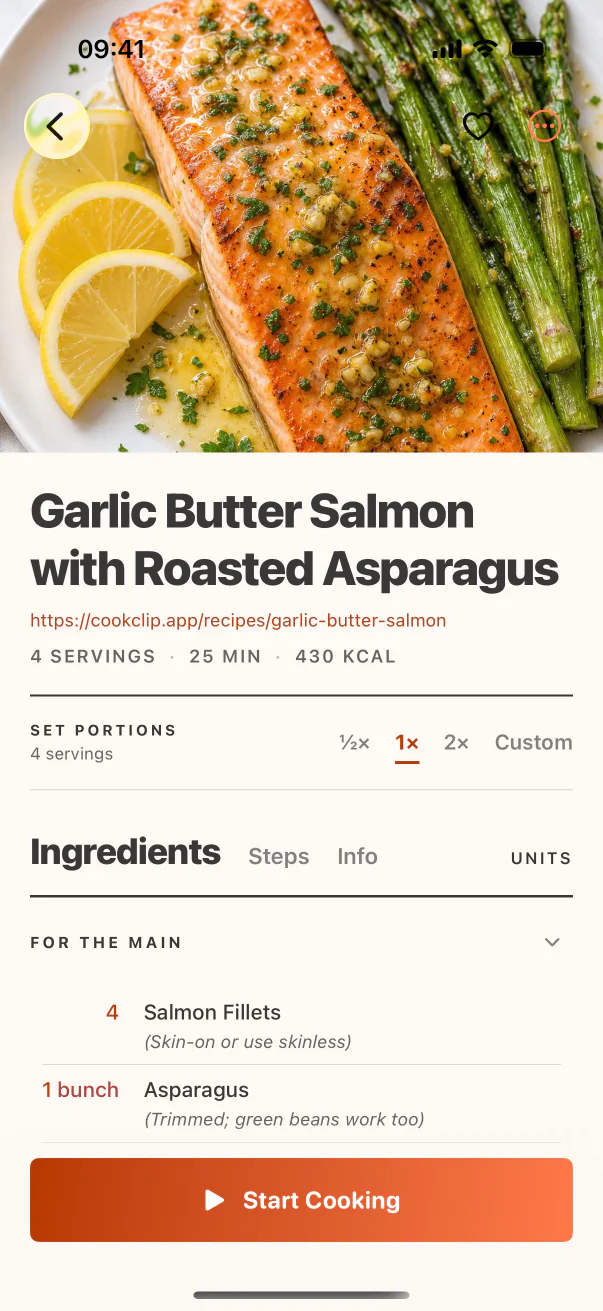
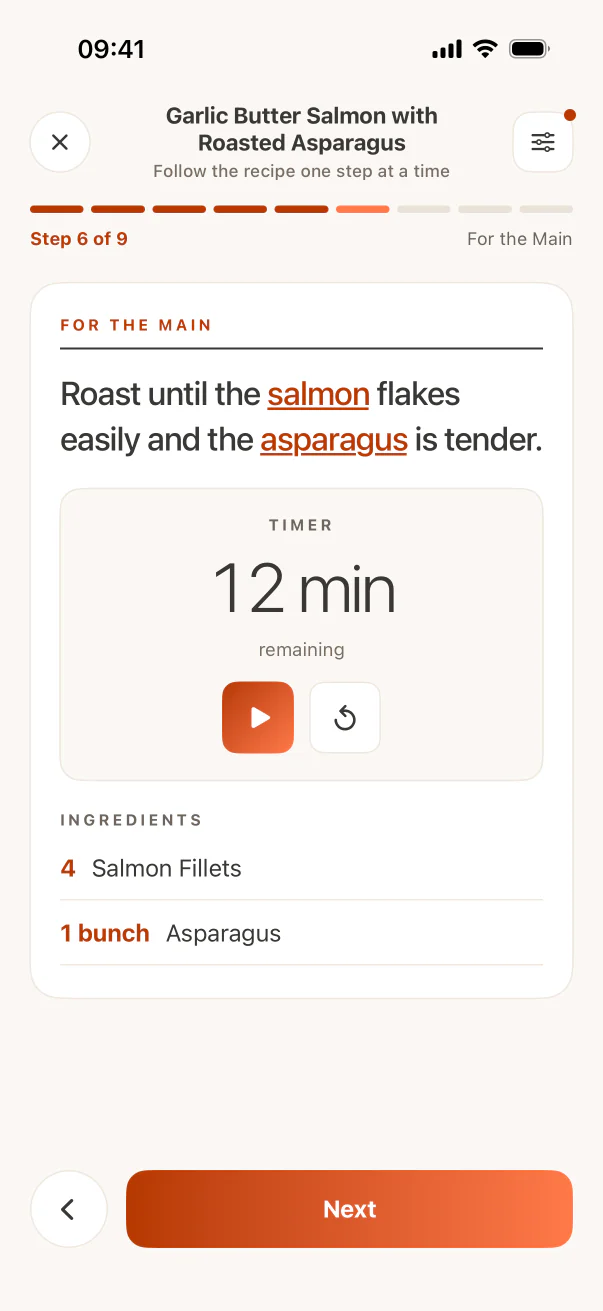
Step 2: Start the Crouton import in CookClip
Open CookClip and go to Settings → Import Recipes → Import from Crouton. Tap Choose Crouton Export, select the ZIP or .crumb file from Files, and leave CookClip open while it reads the archive and imports the recipes.
A ZIP can contain many .crumb recipes, so the import may take a moment. CookClip continues past individual malformed entries when it can, rather than making one bad file stop the whole batch. Migration imports are local and do not use the Smart Import quota.
Step 3: Read the migration summary
When the import completes, check the counts for imported, duplicate, and failed recipes. Existing matching recipes are skipped so you can safely retry an export without creating another copy of every recipe. A failed entry is a prompt to open the original Crouton recipe and decide whether to export it again, repair it manually, or leave it behind.
Open a few representative recipes from the beginning, middle, and end of the batch. Check the title, ingredient sections, step order, servings, cooking time, source link, tags, nutrition, and photos. Once the sample looks right, browse the rest of the library and start organizing only the recipes you actually plan to cook.
What to do after the migration
Keep CookClip as the working copy only after you are comfortable with the result. Add the recipes you want to cook soon to a practical collection, use search to find them by title or ingredient, and add a few meals to your plan before building a grocery list. The migration is the first step; the useful payoff is being able to find and cook the recipes without returning to the old app every time.
Because migrated recipes do not count toward the Free recipe-library limit, you can bring over the library you need and then decide which CookClip workflow fits your cooking habits. You do not need to delete Crouton immediately—keep it until your spot checks and any important backups are complete.
Practical checklist
Crouton to CookClip migration checklist
- Export a ZIP for a library or a .crumb file for one recipe.
- Save the export in Files and keep the original Crouton library.
- Open Settings → Import Recipes → Import from Crouton in CookClip.
- Leave CookClip open until the migration summary appears.
- Spot-check recipes, then review any duplicate or failed entries.
FAQ
Common questions
Can CookClip import my whole Crouton library?
Yes. Export the library from Crouton as a ZIP archive, then choose it in CookClip’s Import from Crouton screen. The ZIP can contain multiple .crumb recipe files.
Can I import just one Crouton recipe?
Yes. Choose the individual .crumb file in CookClip instead of a ZIP archive.
Does this migration use my Smart Import quota?
No. Crouton migration is a separate local file-import flow and does not use Smart Import quota. Migrated recipes are also exempt from the Free recipe-library limit.
What happens to duplicate recipes?
CookClip compares matching recipes and skips existing matches. The completion screen reports duplicate entries so you can distinguish them from newly imported recipes.
What if some recipes fail?
The migration reports failed entries and continues with other readable recipes when possible. Keep the original Crouton library and try exporting or recreating only the affected recipes.
Try the workflow
Save the useful version, not another mystery link
CookClip can turn links, shared sources, pasted text, photos, and screenshots into editable recipe drafts you can review and keep.