
Import the recipe
Share a link, paste a URL or note, or scan a clear photo or screenshot.
Recipe to grocery list
Save a recipe from a website, Instagram, TikTok, Facebook, YouTube, or a screenshot. CookClip extracts the ingredients into an editable recipe, then helps you build one organized shopping list from the meals you want to cook.
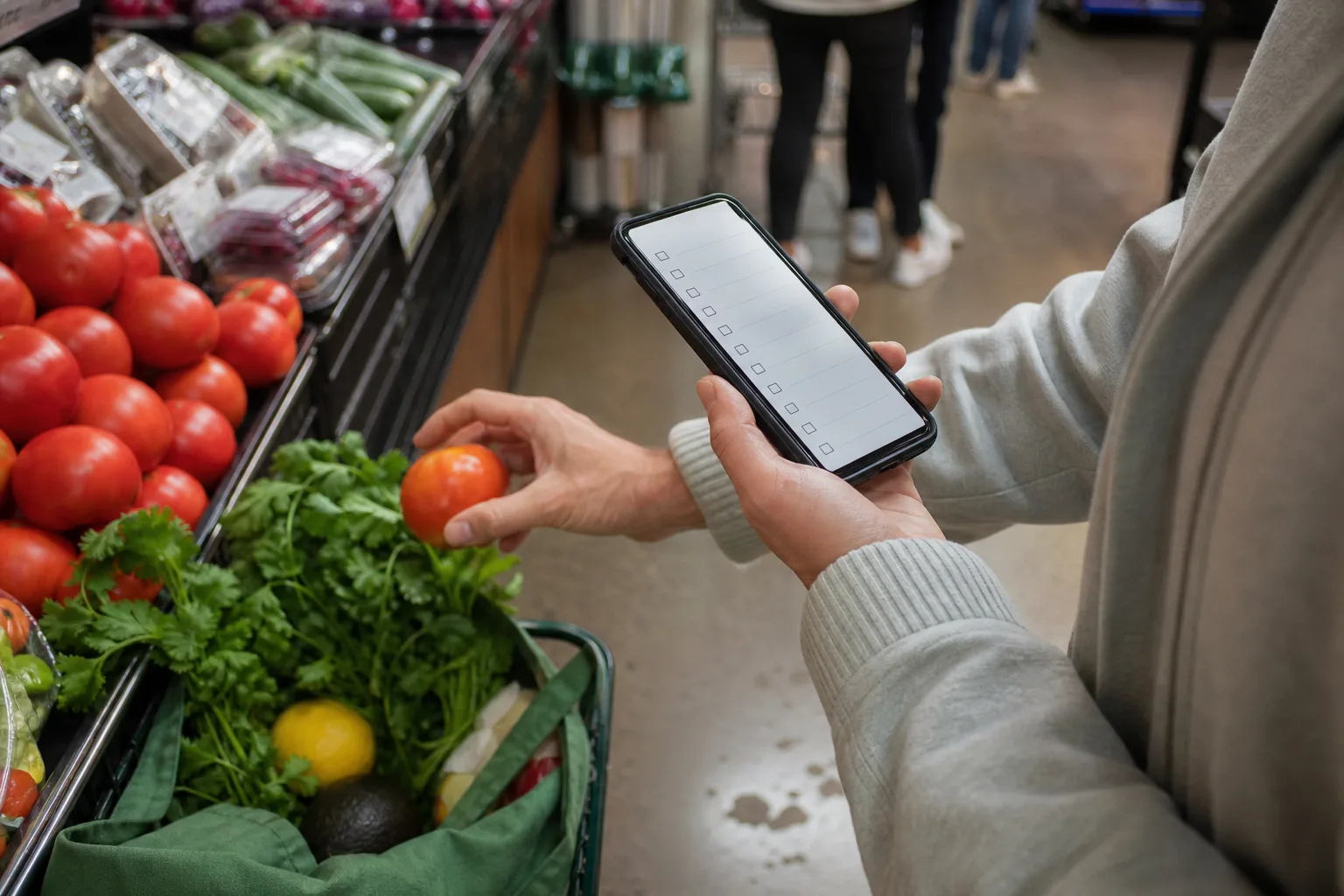
Import · Review · Combine · Categorize · Check off
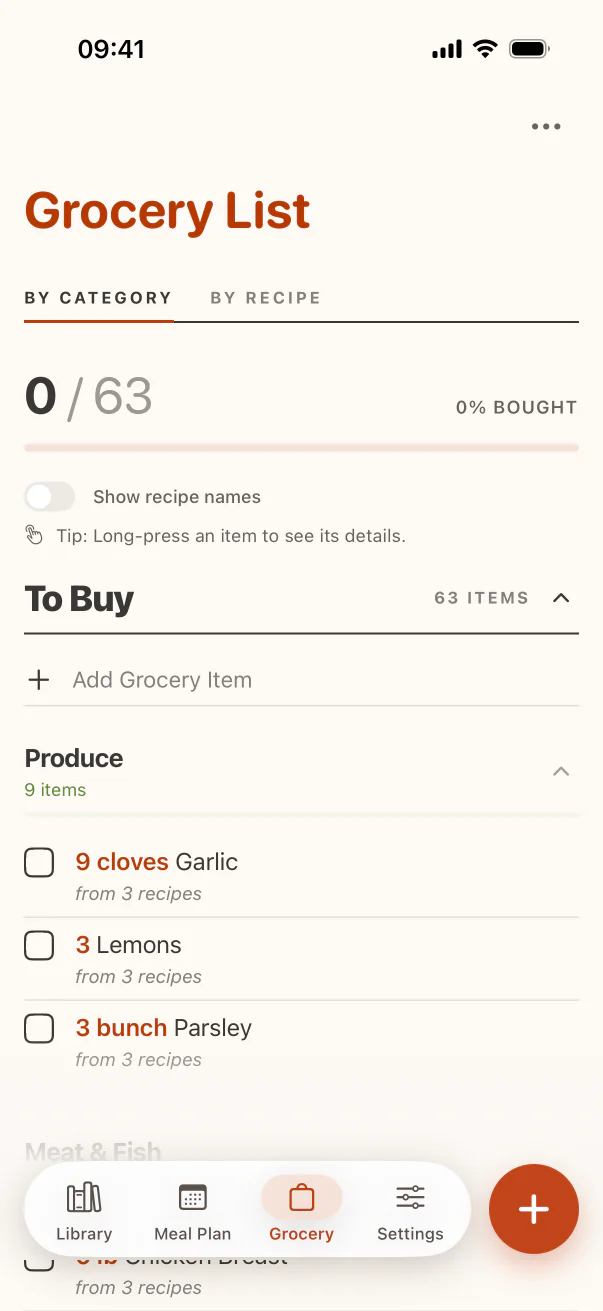
From recipe to shop
A recipe-to-grocery-list workflow should remove retyping without removing your judgment. CookClip does the repetitive part, while you stay in control of quantities, substitutions, and what is already at home.
Share a link, paste a URL or note, or scan a clear photo or screenshot.
Check the editable draft for amounts, units, optional items, and serving size before saving.
Add what you need, remove what you own, then check items off as they reach the trolley.
Import from anywhere
Recipes rarely arrive in the same format. CookClip gives a website recipe, social post, screenshot, or pasted note a common structure so its ingredients can become useful beyond the original source.
AI and text recognition can misread a fraction or miss a detail that only appears in a video. CookClip keeps the imported recipe editable so you can verify it before adding anything to the shop.
Paste or share the recipe page, then review the title, servings, ingredients, method, timing, and source. See every import method.
Share the public post or paste its link. When the full recipe is not exposed, use the caption, creator page, pasted text, or screenshots as a fallback.
Share or copy an accessible post link, or paste the recipe text when privacy settings or an incomplete post prevent CookClip from seeing enough detail. Review every amount before saving.
Import the video link when the description or transcript contains usable recipe detail, and keep the original video attached for technique and context.
Scan clear images of recipes from your camera roll, printed pages, notes, or recipe cards, then verify fractions and temperatures carefully.
Automatic ingredient extraction
CookClip separates the available ingredient lines from the instructions and places them in a structured recipe draft. That structure is what makes a shopping list from a recipe possible: each ingredient can be reviewed, selected, and sent to Grocery instead of copied out by hand.
Check cups, grams, tablespoons, pack sizes, and notes such as divided or optional before you shop.
Make the recipe fit the people you are feeding before its quantities reach a combined list.
Correct extraction errors and preserve the original link or video for attribution and context.
Skip optional garnishes, remove stocked pantry items, and add a substitution note where useful.
Accounts and access
You can write and organize recipes manually without an account. Guest Smart Import may provide two successful imports per device when enabled; sign in to continue after that allowance. An internet connection is required for online recipe structuring.
Grocery Basic and Meal Plan Basic are available to Free users on CookClip 2.4.0 and later. AI grocery organization also needs a signed-in account and a connection; standard on-device categories keep the list usable when AI is unavailable.
Start with manual recipe creation and a limited Smart Import allowance before deciding whether to upgrade.
Review imported recipes and use the same recipe-to-shopping-list workflow on either supported device.
One list, several recipes
Add ingredients from one dinner or several saved and planned recipes to the same grocery list. Shop in Category view for a practical route through the store, then switch to Recipe view whenever you need to know why an ingredient is there.
A recipe-linked meal plan helps you settle the meals and serving counts first. Open the recipes in the plan and select the ingredients you need, which means fewer abandoned ingredients later.
Active items are organized into sections such as Produce, Dairy, Meat & Fish, Pantry, and Other.
CookClip groups matching grocery names and keeps their quantities and recipe sources visible; check the total rather than assuming unlike units can be added automatically.
See which recipe requested the garlic, yoghurt, or lemons before changing or removing it.
Add breakfast food, snacks, toiletries, or household items beside the recipe ingredients.
Tap items as you shop so purchased ingredients move out of the active list without disappearing.
Real example
Save a salmon bowl from a website, a lentil soup from Instagram, and breakfast muffins from a screenshot. Review each imported ingredient list, adjust the servings, and add the ingredients you need to Grocery. Remove the olive oil and flour already at home. Shop the remaining produce, dairy, fish, and pantry items by category; switch to Recipe view if you forget which dish needs the coriander; then check off each item as you buy it.
See the workflow
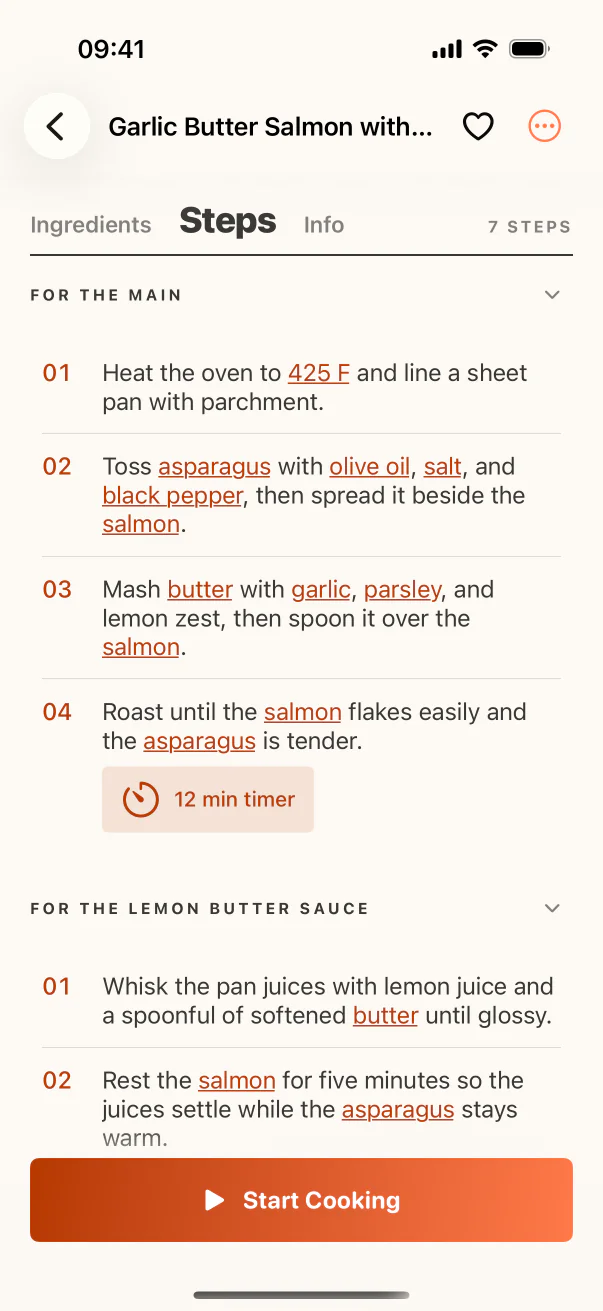
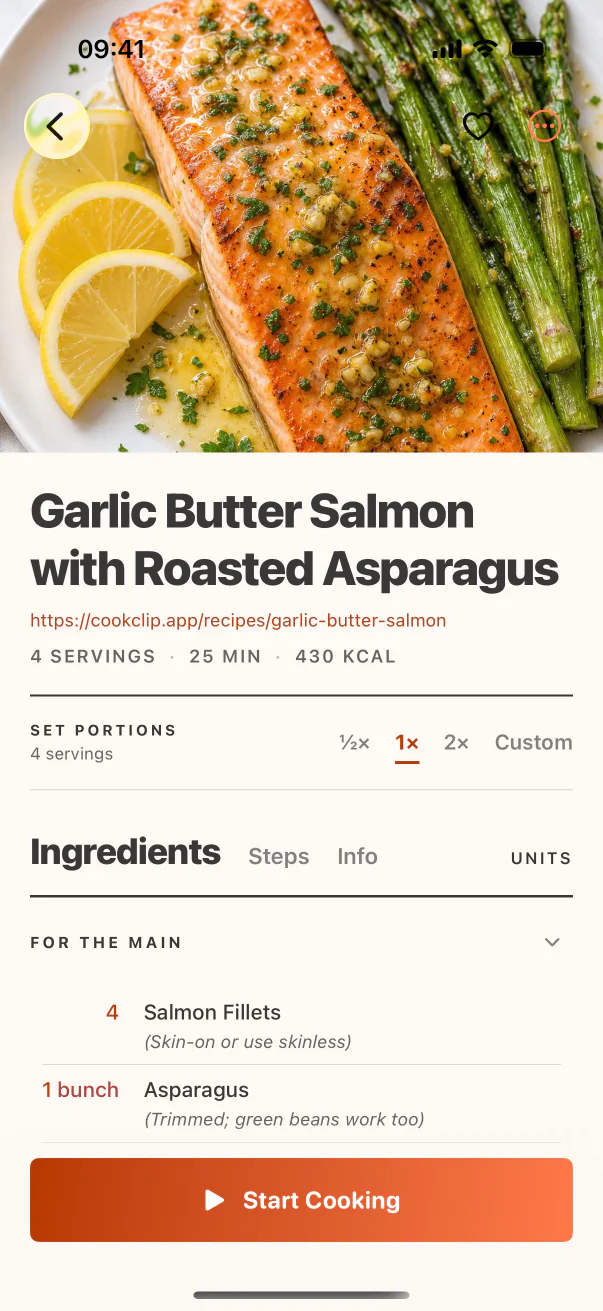
The recipe stays readable at every stage, from the first source to the final shop.
FAQ
Import or save the recipe in CookClip, review the extracted ingredients, and add the ingredients you need to Grocery. Remove anything already in your kitchen, then shop from the categorized list.
Yes, when enough recipe detail is available. Share or paste an accessible link into CookClip, review the editable recipe draft, then add its ingredients to your grocery list. A creator website, caption, transcript, pasted text, or screenshot can help when a post does not expose the full recipe. Private or incomplete posts may need pasted text, photos, or manual corrections.
Yes. Add ingredients from multiple saved or planned recipes to one list. Category view organizes the shop by section, while Recipe view keeps each item's source visible.
Yes. Review and correct the imported recipe draft before saving, then choose the ingredients you need when adding the recipe to Grocery. Grocery-specific quantity and note edits do not change the saved recipe.
Yes. CookClip organizes active items into shopping sections such as Produce, Dairy, Meat and Fish, Pantry, and Other. Standard on-device categories remain available when you are offline or signed out.
Yes. You can remove ingredients you already own, edit grocery-specific quantities or notes, add manual household items, and move purchased items from To Buy to Completed without changing the saved recipe.
CookClip is free to download. Manual recipe creation works without an account, while guest Smart Import may include two successful imports per device when enabled. Signing in provides the account allowance. Starting with version 2.4.0, Free users can use Grocery Basic and Meal Plan Basic; Pro adds advanced grocery, planning, AI, and scaling features.
Yes. CookClip supports both iPhone and iPad, so you can review recipes and use the grocery workflow on either supported device.
A shorter path to the shop
Keep the source, review the recipe, and carry one useful list through the store instead of juggling tabs, notes, and screenshots.