
Social recipe screenshots
Capture the caption, ingredient slide, and method slide before a Story or post changes. Import the clearest images and check that the complete recipe made it into the draft.
Photo and screenshot recipe saver
A screenshot is quick to capture but awkward to cook from. CookClip helps turn clear recipe images into editable ingredients and steps while keeping you in control of the final review.
Best results come from sharp, well-lit images with complete ingredients and steps.
The image problem
Recipe screenshots get mixed with receipts, messages, and ordinary photos. Even when you find one, you may still need to zoom, swipe between images, or guess which screenshot contains the missing method.
Capture the caption, ingredient slide, and method slide before a Story or post changes. Import the clearest images and check that the complete recipe made it into the draft.
Photograph one page at a time from directly above. Flatten curved pages, avoid glare, and include the full ingredient list and every instruction.
Use even light and preserve the original photo. Handwriting, faded ink, fractions, and margin notes deserve a slower line-by-line review.
If the recipe spans several screenshots, collect them in order first. Missing the final slide can also mean missing the oven temperature or cooking time.
A reliable workflow
Text recognition can save typing, but cooking accuracy still depends on context. A clean crop helps CookClip read the image; your review catches whether “1 1/2” became “11/2” or a temperature lost its degree symbol.
For treasured family recipes or image-heavy instructions, keep the photo as a reference instead of treating the digital transcription as the only surviving copy.
Capture the title, all ingredients, the full method, servings, timing, and temperature when those details are available.
Crop out unrelated comments, browser controls, and neighbouring pages without cutting off measurements or instructions.
Review fractions, decimal amounts, oven settings, cooking times, ingredient names, and handwritten abbreviations.
Rename vague screenshots, add the creator or cookbook source, and write notes about substitutions or family variations.
Real example · a three-slide Reel recipe
You have one screenshot for ingredients, one for the sauce, and one for the final oven instruction. Import the images, confirm that every slide belongs to the same recipe, then verify the amounts and order before saving one structured recipe.
Put every screenshot in the correct sequence before importing.
Check the sauce quantities, temperature, and final cooking time.
Save it with a clear title, source, collection, and your own cooking note.
See the workflow
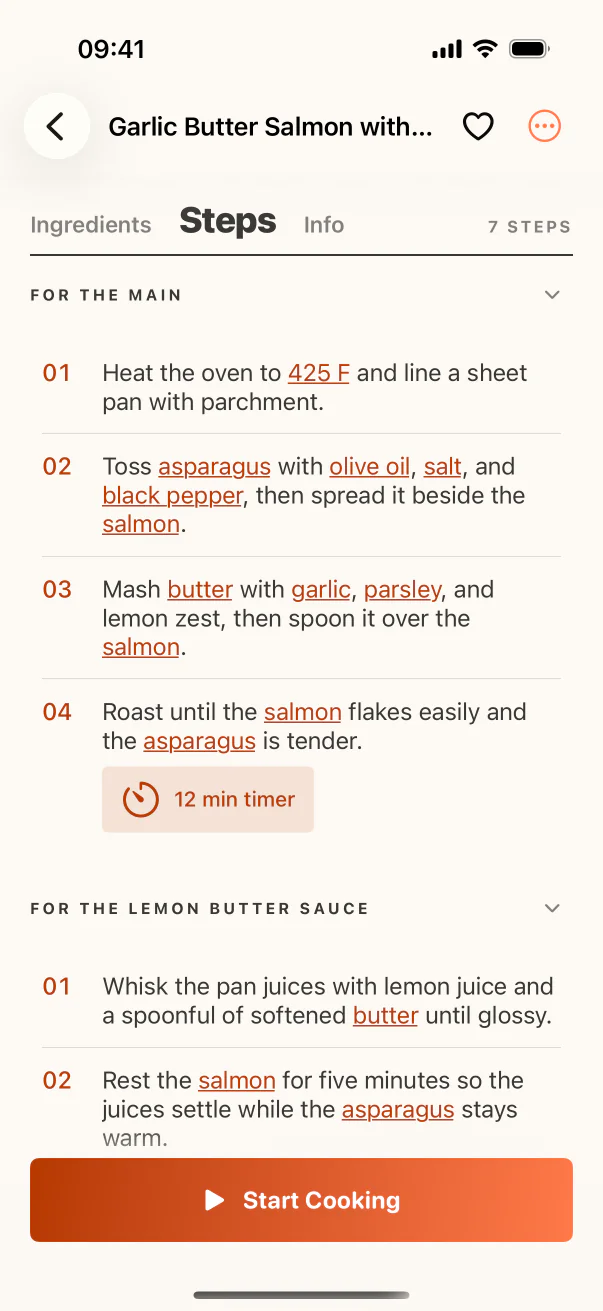
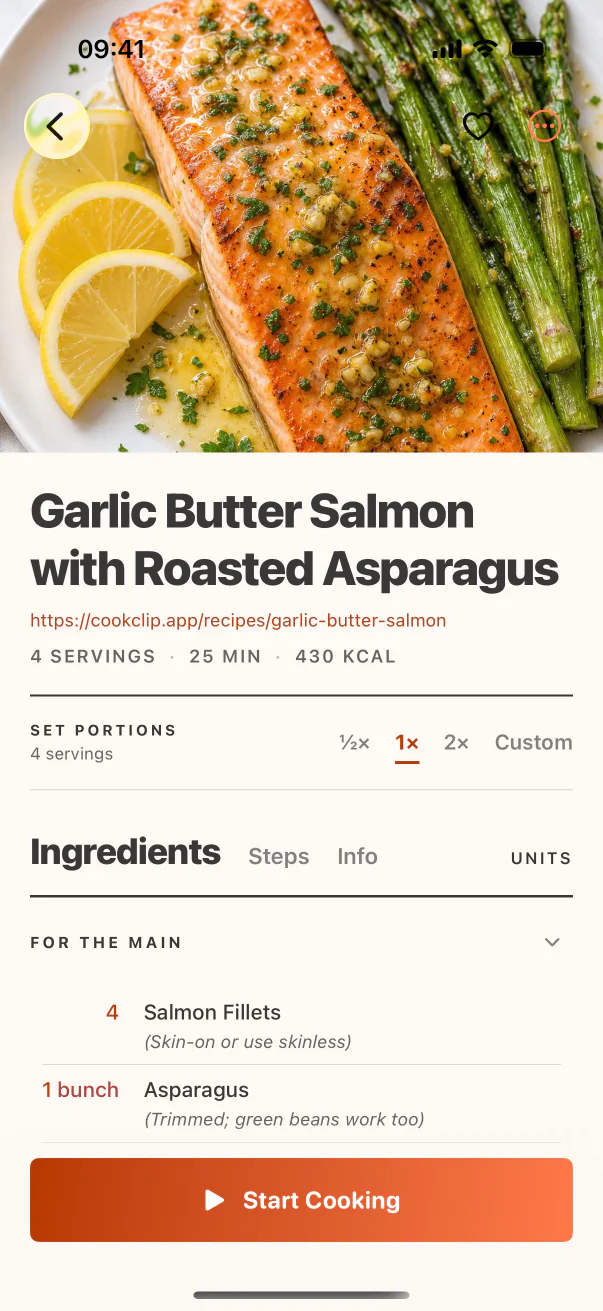
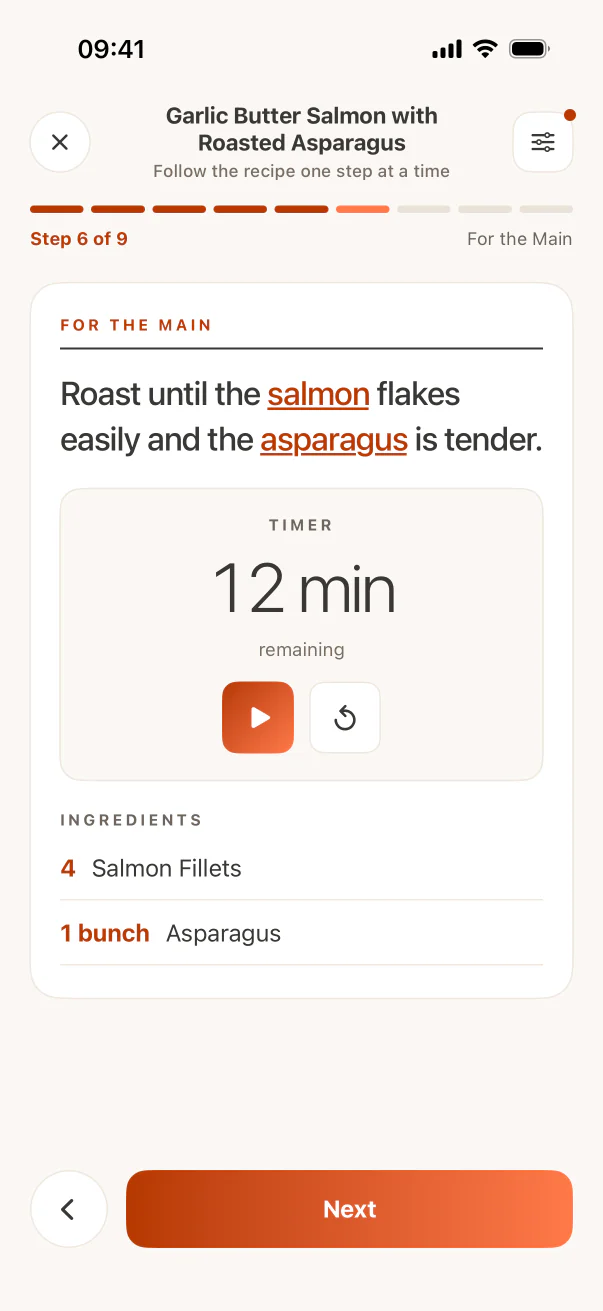
The screenshots show the product steps that support this search intent, not a generic marketing mockup.
FAQ
Yes. CookClip can use a clear screenshot or photo to create an editable recipe draft. Always review the result before saving or cooking.
Use bright, even light, photograph the page straight on, keep the image sharp, and include the complete ingredient list and method.
Yes, but collect the screenshots in order and confirm that no ingredient, timing, or final instruction is missing from the finished draft.
Yes, especially for handwritten, historic, or family recipes. The image preserves the original wording and context if the transcription needs checking later.
Next step
Import the image, review the risky details, and save one searchable recipe instead of another mystery photo.