
Quick answer
Keep the video for technique and save a structured recipe for cooking
Share or paste a YouTube recipe link into CookClip, then compare the draft with the description, transcript, on-screen measurements, and any linked written recipe. Start free with up to 50 saved recipes and 5 AI imports. If you need Pro, you can subscribe or buy Lifetime Pro once when that option is available in the app.
A YouTube playlist is useful until you need one measurement
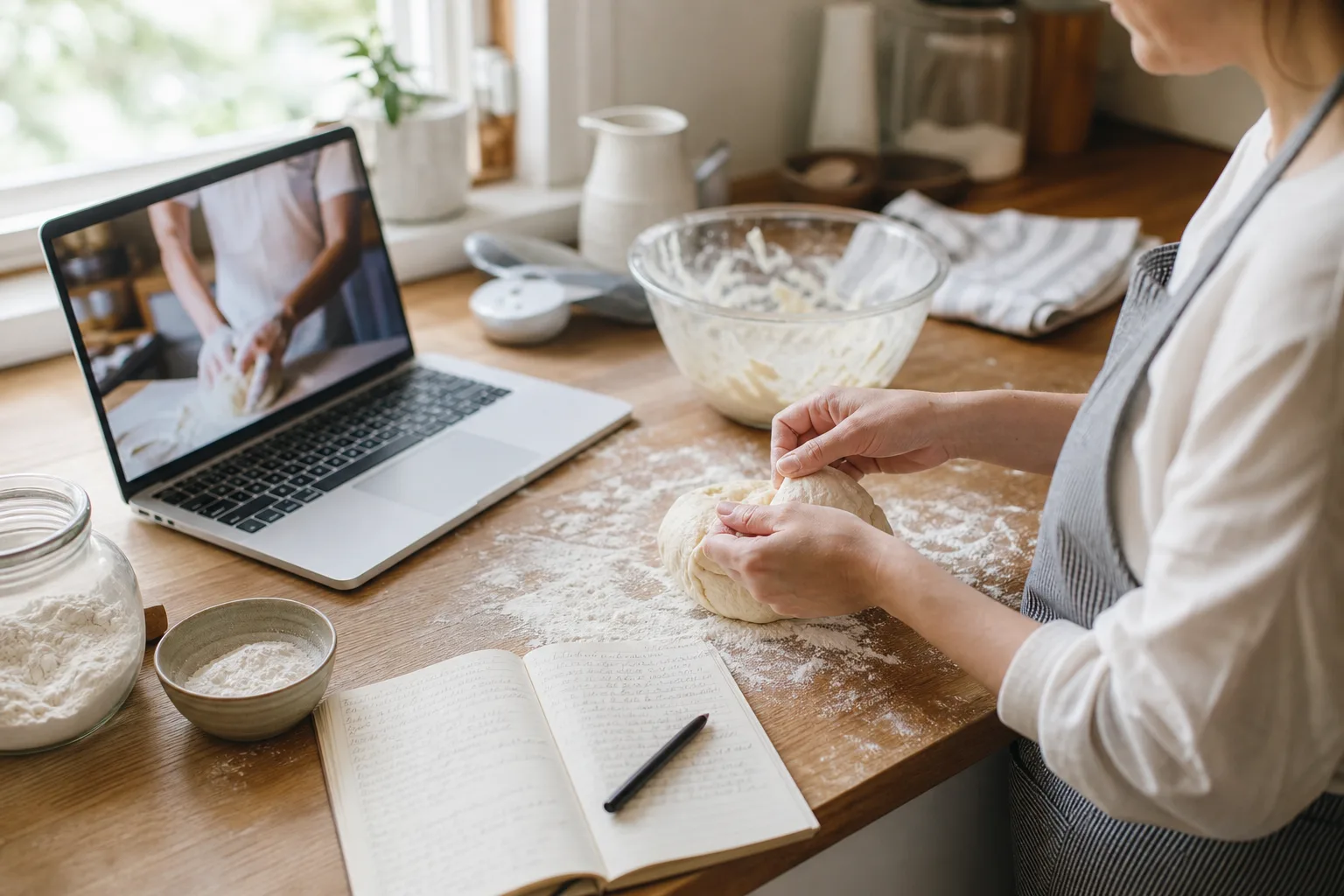
Long-form cooking videos can explain a technique better than any short recipe card. They are also slow to search while a pan is heating. The ingredient you need may appear eight minutes into the video, the oven setting may only be spoken once, and your playlist title may say nothing about the actual dish.
The most practical system keeps both formats. Save a structured CookClip recipe for ingredients, steps, timing, servings, planning, and shopping. Keep the original YouTube URL attached for demonstrations, context, and the creator’s full explanation.
Import the most complete YouTube source available
Share the video to CookClip from iOS or paste the YouTube URL. Before finalizing the draft, expand the description and look for a linked recipe page. Check the transcript when it is available and note any measurements or temperatures that only appear on screen.
A creator’s written recipe is usually the best primary source because it is easier to verify. The video can remain attached as technique context, with short timestamps for the moments you may want to replay.
- Confirm spoken fractions and ingredient names against the screen.
- Separate active cooking time from marinating, proofing, or chilling.
- Add timestamps only for techniques that are hard to describe in text.
Inside the app
See the workflow in CookClip
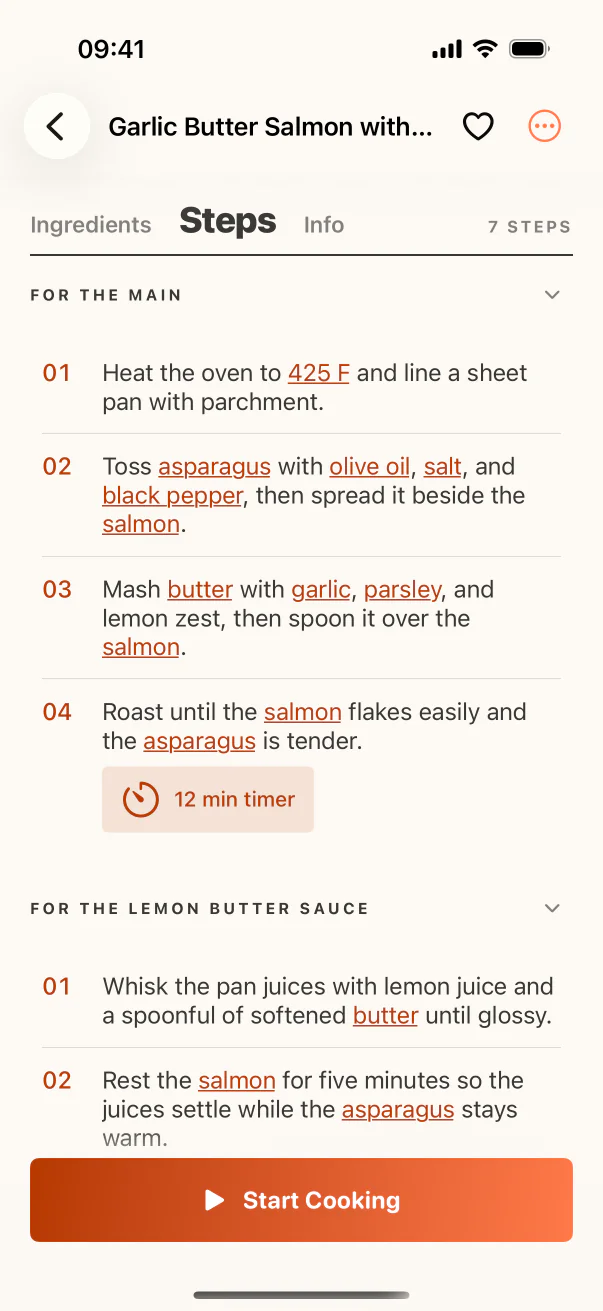
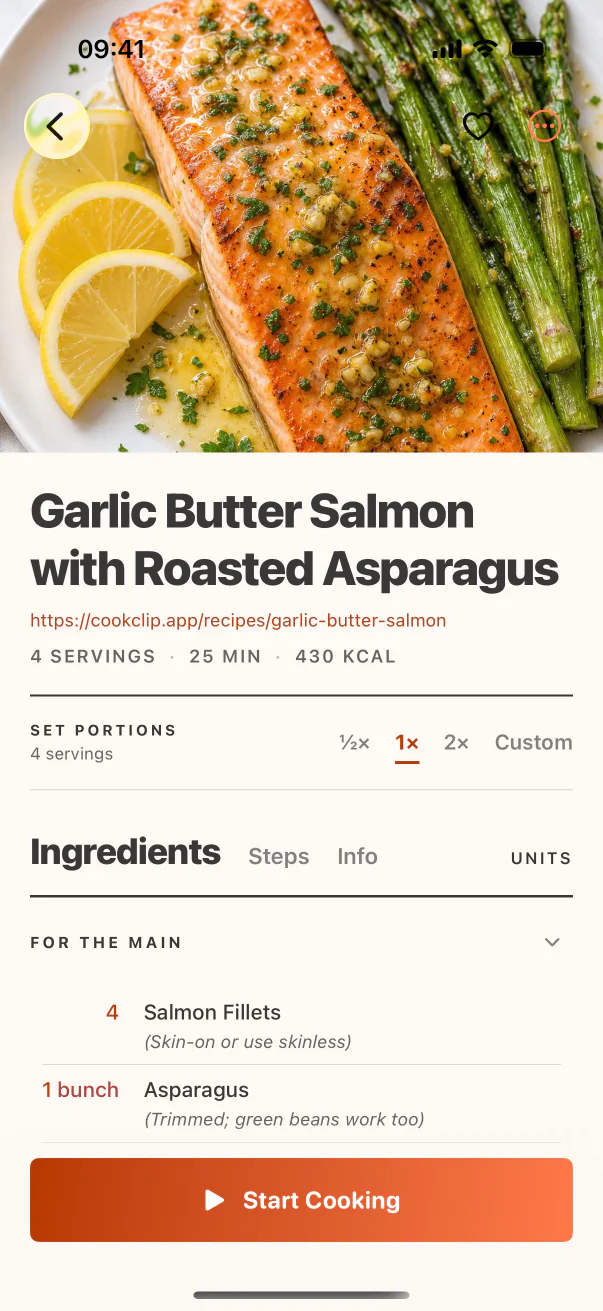
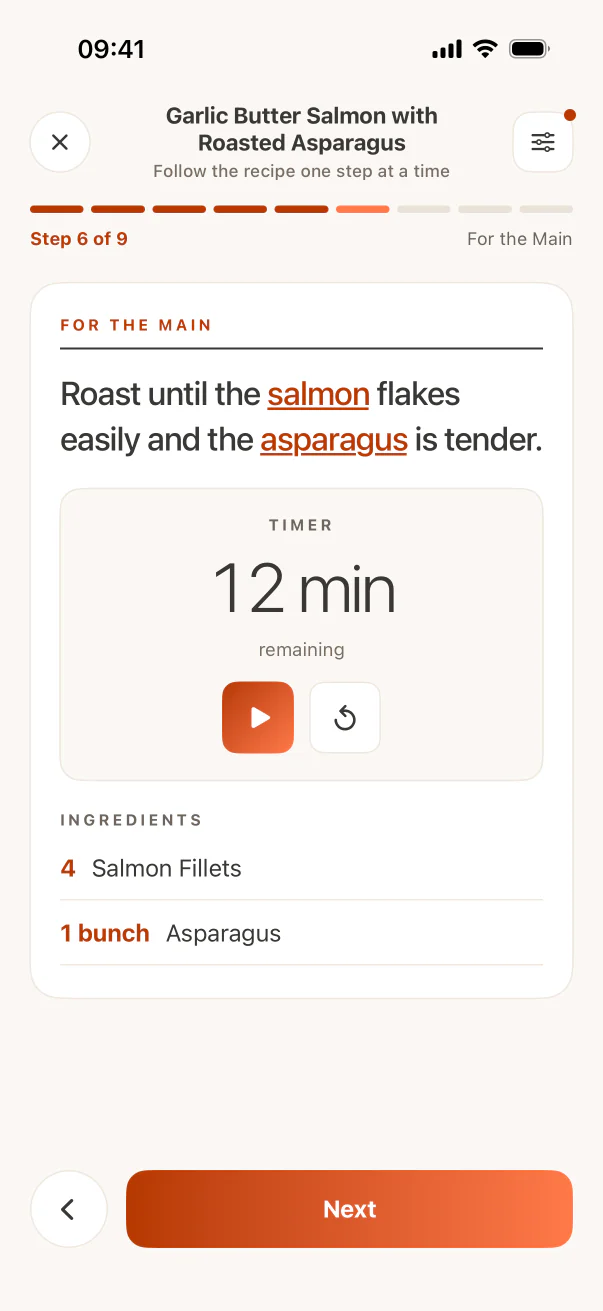
These are real CookClip screens. Swipe across on mobile, or compare all three on a larger screen.
Skip recurring billing with Lifetime Pro when available
You can test CookClip before deciding how—or whether—to pay. CookClip Free supports up to 50 recipes and 5 AI imports, which is enough to compare a handful of real YouTube recipes and see whether the workflow removes the friction you care about.
Pro adds unlimited saves and AI imports along with AI recipe ideas, online discovery, AI-generated meal plans, advanced grocery organization, custom scaling, and expanded recipe tools. A subscription is available for people who prefer recurring access, but it is not the only possible path: when Lifetime Pro appears in the app, you can buy it once with no ongoing subscription. Availability and local pricing are displayed on the purchase screen before you commit.
Use the recipe card to plan, shop, and cook
Once the draft is accurate, give it a searchable dish name, add a useful collection or tag, and decide whether it belongs in Cook Soon. Schedule it in the meal plan before shopping, confirm how many people you are feeding, and add the finalized ingredients to the grocery list.
During cooking, Cook Mode lets you follow the ordered steps without waking the screen and searching through the video timeline for every instruction. Open YouTube only when the visual detail genuinely helps.
Do not let a confident transcript hide missing detail
Automatic transcripts can mishear ingredient names, quantities, and temperatures. Some creators also demonstrate by feel and never state a precise amount. Compare every critical number with the audio, screen, description, and written source instead of treating extracted text as authoritative.
If a safety-sensitive or structural detail remains missing, write an explicit note or choose another recipe. CookClip makes available information easier to use; it cannot turn an undocumented guess into a tested method.
Practical checklist
From YouTube watch list to dinner plan
- Share the YouTube video or paste its URL into CookClip.
- Check the description, transcript, overlays, and linked written recipe.
- Verify quantities, temperature, timing, servings, and resting periods.
- Keep the creator URL and add only genuinely useful timestamps.
- Plan the meal and build groceries from the reviewed recipe card.
FAQ
Common questions
Can CookClip turn a YouTube video into a recipe?
CookClip can create an editable draft from supported YouTube links when enough recipe detail is visible in the public source. Review it against the video and any written recipe before saving.
Should I keep the original YouTube video?
Yes. Keep the URL for attribution and visual techniques. Use the structured recipe for quick ingredient, step, planning, and grocery access.
Can I try YouTube imports without subscribing?
Yes. CookClip Free includes up to 50 saved recipes and 5 AI imports, so you can test the workflow before choosing Pro.
Is there a one-time CookClip purchase?
When Lifetime Pro is available in the app, you can buy it once with no recurring subscription. The app shows current availability and local pricing before checkout.
Try the workflow
Keep YouTube recipes handy without a required subscription
Start free, then choose the Pro purchase style that fits: a flexible subscription or Lifetime Pro once when available in the app. Current local pricing is shown before purchase.